Log on
Main page Graphics Photography Audio Video Tools Web Design Documents Space & Astro Amiga Funny Surreal Gallery Links & Contact

Configuration Tips

Making the computer faster and nicer - editor's choice

These are largely my own personal notes on how to configure the GUI to be less annoying, less bloated and first of all more responsive. I just made them public in case anyone else happened to share my opinion on settings.


General Tips

  • Upgrade your hardware. The newer the hardware, the faster it is. (Well duh!) When you upgrade make sure you get lots of RAM. This is way more important than having lots of CPU, especially for over-all Windows performance. Also look for average seek times, when buying harddrives. Those two factors are what counts. If you can afford SCSI or a Solid State (flash based) drive, go for it.
  • Be conservative with software upgrades. Most people tend to switch to the latest Windows version and upgrade all their software right after buying a new PC, simply because of the refreshing feeling of "starting with something new". This is where you should hesitate. Older software is typically simpler. Simpler software is faster. Only upgrade if there are bugs or features missing.

    Now there are special cases where newer drivers or newer software result in faster performance, but that's actually much more rare than commonly assumed, due to the low cost-benefit yield of software optimizations in general.

Warning: Even though it is unlikely, the .reg files on this page might change settings in Windows that have undesirable effects. I cannot be held responsible for any such side-effects.

Windows 2000 / 2003 / XP

  1. Use the Classic theme in XP.
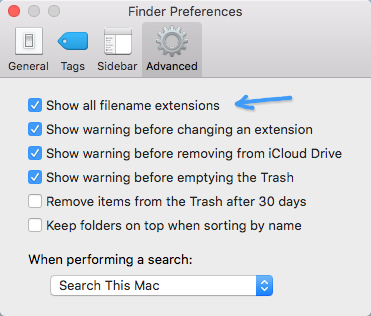
  2. Open My Computer, Tools, Folder Options, click on "use classic desktop", "classic folders". Go to the View tab, enable "full path in title bar", disable "Hide file extensions.." and disable "remember each folder's view".
  3. Right click the task bar and make sure that only "show clock" is enabled. In the Advanced tab disable all checkboxes.
  4. Right click My Computer, Properties, Advanced, Environment variables: set TEMP and TMP to C:\temp in both windows (and make sure C:\temp exists.)
  5. Right click the desktop, Properties, Effects tab, disable "Use transition effects".
  6. To disable mouse acceleration turn off "enhance pointer precision" in the mouse control panel or simply run this (recommended).
  7. To disable auto-run on CD-ROM drives, run this.
  8. To disable the annoying taskbar flashing in XP run this.
  9. To disable slow scrolling run this.
  10. You can both disable and enable the windows keys and caps lock.
  11. To enable large IDE drive (128 Gb+) support run this (highly recommended for newly installed systems!)
  12. Get faster menus by running this.
  13. For tab completion in the DOS window run this.
  14. To make the system swap less try this (experimental).
  15. If any application is using the CPU all the time, set its priority to "Idle" in the taskmanager.
  16. If the machine is slow (lots of disk activity), quit and reload all Adobe applications.
  17. Speed up your network by increasing the recieve window and TTL (experimental).
  18. Try running C:\WINDOWS\system32\gpedit.msc

X-Windows (XFree86)

  1. To adjust mouse speed add one of these lines to the end of ~/.xinitrc:
    xset m 5/10 1     (slow)
    xset m 10/10 1   (medium)
    xset m 20/10 1   (fast)
    xset m 20/10 5   (accelerated, special use only)
  2. To set the keyboard repeat rate add one of these lines to the end of ~/.xinitrc:
    xset r rate 400 15   (slow)
    xset r rate 250 25   (medium)
    xset r rate 200 40   (fast)
  3. To make the key between shift and Z on a european keyboard type \ and | like in Windows, first verify if you can resolve the matter the normal way by choosing the correct keyboard model in the system settings under Input Devices. In my case selecting "Keytronic" instead of Generic gave me my backslash key where I wanted it.

    If this fails create a file called ~/.Xmodmap containing:  keycode 94 = 0x05C 0x7C. If you need to switch keyboard layout in KDE, locate the file called /usr/share/X11/xkb/symbols/us (or any other language) and add this section:

    // Use <BKSL> instead of <LSGT> xkb_symbols "proper_blackslash" {     include "us(basic)"     name[Group1] = "105 key keyboard with <\|> key";     key <LSGT> { [ backslash, bar, slash, NoSymbol ] }; };
    After adding this, go to the Control Center -> Regional -> Keyboard Layout and choose the layout variant called "proper_backspace".
  4. To disable the beeping: xset b off
  5. Remember to run "uptime" or "top" once in a while. The load average should usually be less than 1.00 unless the computer is calculating something.

FreeBSD

  1. To make backspace, delete, home and end work properly, create an .inputrc file in your home directory containing:

    "\x7F": backward-delete-char "\e[3~": delete-char "\e[1~": beginning-of-line "\e[4~": end-of-line

Macintosh

Is the mouse difficult to control or "feels weird"? This is because of "acceleration" which cannot be disabled on Mac like you can on other operating systems. Here are some tricks that are supposed to disable mouse acceleration (untested by me, as I don't have a Mac yet):
  1. Get one of these applications: Mouse Curves or SteerMouse.
  2. I've also seen this solution suggested.
  3. Third method is to run the two lines below in Terminal, log out, and then back in.
    defaults write .GlobalPreferences com.apple.mouse.scaling -1
    defaults write .GlobalPreferences com.apple.trackpad.scaling -1

Windows 98 / ME

  1. Okay, you really should start thinking about changing operating system!